martes, 5 de marzo de 2013

Scribus Experience

For this unit in technology, we have been learning to use the program Scribus.
Scribus is a great program used for desktop publishing, in which you can do very professional looking layout pages. Not just can you type, but you can also insert high quality images, shapes and many other setting equipment.

This is what a Scribus page would look like while you're using it:


While using Scribus I learned to do many useful things that newspaper, and magazine article writers use everyday. Like for example I learned to do columns of text, to insert images, to insert shapes, and other more typical things like changing the letter color and font types. Another useful thing I learned to do was to convert the Scribus file into a PDF one in order to make it compatible with other computers. You can also do more complicated things, but since I learned to do everything on my own, I think I did quite a good job at learning at least the things I learned.

This are some photos of people using Scribus for different things:


                                                                                                  ELENA LAMANA

domingo, 3 de febrero de 2013

Desktop Publishing

In this assigment I have to talk about Desktop Publishing and other main things important to have and know about technology.

Definition of Desktop Publishing: Editorial work computer assisted. Home Edition which has been made possible thanks to the advancement in technology and electronics that allow modern computers. Equivalence: DTP.

Possible uses of DTP for: 

1. Graphic Design. This is the number one use for desktop publishing and can be held accountable for why the term has changed so much over the years. Professional graphic designers use DTP programs such as QuarkXPress, Adobe PageMaker, and Adobe Photoshop to create webpages, the front pages of newspapers, and a variety of other visual documentation. Thanks to DTP, graphic design has become more than just pencil and paper. The introduction of desktop publishing has taken graphic design to greater heights. Without desktop publishing, there is no graphic design, and vice versa.

2. Career Assistance. Word processing also has also played its part in the DTP world. Microsoft Word and Open Office are used faithfully by numerous job seekers everyday as they work to put together the perfect resume, cover letter, or portfolio. Many create documents from scratch, while others take advantage of the oh-so-convenient templates.
3. Education. In the education field, teachers and students use a variety of DTP programs to complete assignments and projects. Whether it’s an Intro to Desktop Publishing course and the program of choice is QuarkXPress, or a Technical Writing Course that takes an in-depth look at Microsoft Word, the use of DTP in educational institutions is very prevalent.
4. Business. Today, desktop publishing is pretty much used to handle all of the “paperwork” of a business. Although it’s possible to run a business without the help of DTP, it isn’t the smartest business decision. From sole-proprietorships to Fortune 500 companies, DTP software is a lifesaver and money saver. Examples of DTP use in businesses are business cards, legal documentation, and advertising materials.
5. Crafts and Personal Projects. Desktop publishing is the crafter’s dream come true. Across homes all over the world, parents are looking for easy, cheap, and fun crafts to create with their children, teachers need ideas for students, and the interior decorator could use an origami template. Those who use DTP software for personal use normally stay away from the more advanced DTP software and stick with the more user friendly programs. Examples of desktop publishing projects for personal use are greeting cards, postcards, and invitations.

Main elements in Desktop Publishing: Fonts, image boxes, columns: The elements of design are the building blocks of all designs, chosen to convey the message — beyond the actual words or photos used. Desktop publishing documents utilize the five elements of design : lines | shapes | mass | texture | color.

 Main programs you use: 
    -Layout/design: I don't use any kind of programs for this, because I don't use this two things for anything.
    -Image processing: I use the Photoshop and Gimp programs, and online I use Picnik.

The spread: what it is: Difference between lending rates charged by the bank catchment and the bank pays savers. The difference is your profit or spreads.

PDF: the format for printing: PDF (Portable Document Format) is a file format that has captured all the elements of a printed document as an electronic image that you can view, navigate, print, or forward to someone else. PDF files are created using Adobe Acrobat , Acrobat Capture, or similar products. To view and use the files, you need the free Acrobat Reader, which you can easily download. Once you've downloaded the Reader, it will start automatically whenever you want to look at a PDF file.


martes, 6 de noviembre de 2012

Assessment 6th November: Blog Summary

In this assessment we have to write a summary about; how to edit blogs, how to use dropbox with blogger and how to post images, videos, links...etc.

How to edit blogs:

Editing blogs is a very simple thing. First of all you have to go to your Dashboard and select the blog you want to edit. Then when you are in the dashboard of the selected blog, look at your left hand side to find a tool bar like the one below. 


After you see the tool bar you click on the Template option, and it open up into a window like this:


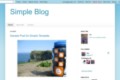
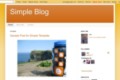
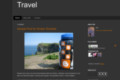
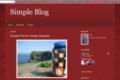
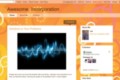
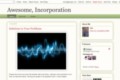
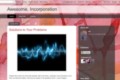
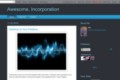
Start with a base template and customize your background, layout, colors, fonts and more...

Dynamic Views

Now you click on the one you prefer and your blog will be the same but with a different template. If you are happy with your template, you can always click on customize and go to your blog  to edit it from there:

Live on Blog
 
Mobile

Now you can see this window:

Templates
Background
Adjust widths
Layout
Advanced
Live on Blog
Based on Simple
Dynamic Views
Simple
Picture Window
Awesome Inc.
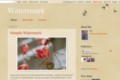
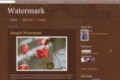
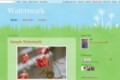
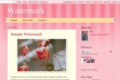
Watermark
Ethereal
Travel
And your blog right below. Well now you just start playing around and changing things, and that's how you edit a blog.


How to use Dropbox:
 Using Dropbox to upload music to the blog for example, is very useful and simple. First of all you must have a Dropbox account, but you don't have to became Premium to do this, so that's also a very good thing. Okay so the first thing you see when you enter your Dropbox are this folders:

Now you have to click on the public folder. And yoo click on the little document with an arrow to upload an audio for example. This is how my Dropbox public folder looks like:

Now you click on one of your choice, and copy the link


And your followers will see this page when they click on the link:


And that's how you add audio from your Dropbox. To add images you follow the same simple steps.

Posting Images, Links and Videos:

The first you must do is to go to the little picture of the image in the tool bar. 
Then you must click on it and select the way to want to upload the picture.
You can upload it via phone, via URL, via webcam via Picassa or via computer.

When you select any of this options it will tell you what you must do. 

Phone: You have to have Google+ in your phone in order to upload the image.
URL: You just get the URL of the photo you want to upload and paste it on the little box.
Webcam: For this option you must have a webcam installed in your computer, then you take a picture and   uploaded.
Picassa: You select the album in where the photo is saved, you click on it and then you upload it.
Computer: You go to Search File and then you just select the photo from your computer  you click on open and the you just say upload.

Those are the 5 ways to upload photos to your bogs.

Adding links is very simple and quick.